To culminate our studies of symbols we worked with Mrs. D'Elia and Mr. Callahan to make this video presentation. We know you will be very impressed!

Learning Every Day In Burlington Public Schools
Showing posts with label Pine Glen Elementary. Show all posts
Showing posts with label Pine Glen Elementary. Show all posts
Tuesday, June 25, 2013

Wednesday, June 19, 2013
Day 149 - Pine Glen Elementary - Grade 2 Students
Second Grade Culture Projects:

This year our really big library and technology project with the second grade was the culture project. Inspired by work shared by teachers at Fox Hill during a Social Studies Curriculum Council meeting, this was an in-depth project involving instruction by the second grade teachers, librarian, and technology specialist. Students researched and learned about one of the cultures their family came from, nonfiction text features, and finding appropriate images online, then inserting those and text into a finished electronic book on the iPad. Many students also used their voices to share some of the words they learned in the language of the country that they studied.
Click on the links below to access the books created by the second grade students!
If you need help viewing these books, please see this post with instructions for both computers and iOS devices like the iPad, iPhone, and iPod Touch.


This year our really big library and technology project with the second grade was the culture project. Inspired by work shared by teachers at Fox Hill during a Social Studies Curriculum Council meeting, this was an in-depth project involving instruction by the second grade teachers, librarian, and technology specialist. Students researched and learned about one of the cultures their family came from, nonfiction text features, and finding appropriate images online, then inserting those and text into a finished electronic book on the iPad. Many students also used their voices to share some of the words they learned in the language of the country that they studied.
Click on the links below to access the books created by the second grade students!
If you need help viewing these books, please see this post with instructions for both computers and iOS devices like the iPad, iPhone, and iPod Touch.
Tuesday, June 18, 2013
Day 145 - Dan Callahan, Pine Glen Elementary Instructional Technology
Reading ePub documents on your iOS device or Computer:
Later this week I should be posting lots of student projects from this year that I haven’t had a chance to post yet!
Many of the projects this year were created in Book Creator for iPad, which creates an ePub file, which is an electronic book format. The advantage of the electronic book format is that it allows students to insert audio and video into their books. The negative is that there aren’t many options for how you can read those books. Up until a couple of months ago, your only option was using iBooks on an iOS device. Now, fortunately, there’s another option on the computer. This post will describe both ways of reading student work created in Book Creator.
iOS (iPad, iPhone, iPod Touch)
First, you’ll need to download iBooks from the App Store. It’s completely free!
Next, you’ll need to find an ePub file to download. Here’s the first grade graphic novel that I posted earlier this year!
After tapping on the link, you’ll see a screen that gives basic information and gives you a download button that you should tap.

This will bring you to an Open In screen. If it says Open in iBooks, tap that. Otherwise tap Open in… and then choose Open in iBooks from the list that pops up.

iBooks will open up with your new book ready to read!

Computer (PC or Mac)
If you don’t have it already, you’ll need to download the Chrome web browser by Google.
Download the ePub file and save it somewhere easy to find again. I use the Downloads folder or the Desktop.
You’ll then need to add the Readium Extension to Chrome. In order to add it, you’ll need to be signed in to a free Google account.

After downloading, it should create a New Tab on the Apps page. Click on Readium.

Click the Add Items button

Click Choose Files, then find your epub where you had saved it. Then click Add Book. Now you can read your book!

Later this year, Apple will release a new version of Mac OS X that will have iBooks built in, so this is just a temporary measure for reading on Mac. After that it will work much more like iOS.


Later this week I should be posting lots of student projects from this year that I haven’t had a chance to post yet!
Many of the projects this year were created in Book Creator for iPad, which creates an ePub file, which is an electronic book format. The advantage of the electronic book format is that it allows students to insert audio and video into their books. The negative is that there aren’t many options for how you can read those books. Up until a couple of months ago, your only option was using iBooks on an iOS device. Now, fortunately, there’s another option on the computer. This post will describe both ways of reading student work created in Book Creator.
iOS (iPad, iPhone, iPod Touch)
First, you’ll need to download iBooks from the App Store. It’s completely free!
Next, you’ll need to find an ePub file to download. Here’s the first grade graphic novel that I posted earlier this year!
After tapping on the link, you’ll see a screen that gives basic information and gives you a download button that you should tap.

This will bring you to an Open In screen. If it says Open in iBooks, tap that. Otherwise tap Open in… and then choose Open in iBooks from the list that pops up.

iBooks will open up with your new book ready to read!

Computer (PC or Mac)
If you don’t have it already, you’ll need to download the Chrome web browser by Google.
Download the ePub file and save it somewhere easy to find again. I use the Downloads folder or the Desktop.
You’ll then need to add the Readium Extension to Chrome. In order to add it, you’ll need to be signed in to a free Google account.

After downloading, it should create a New Tab on the Apps page. Click on Readium.

Click the Add Items button

Click Choose Files, then find your epub where you had saved it. Then click Add Book. Now you can read your book!

Later this year, Apple will release a new version of Mac OS X that will have iBooks built in, so this is just a temporary measure for reading on Mac. After that it will work much more like iOS.
Friday, June 14, 2013
Day 143 - Jane Lynch, Pine Glen Elementary School
Rock Geologists of Room 205:

 |
| Ms. Christie helping out. |
 |
| Does it sink or float? |
 |
| How many colors can I see? |
 |
| Can it scratch a penny? |
 |
| Scientific process at work! |
 |
| Can it leave a streak on a porcelain tile? |
 |
| I think I can break this... |
 |
| Data and recording results |
Thursday, June 13, 2013
Day 142 - Jill Cunha, Pine Glen Elementary School
Building Boston Project:
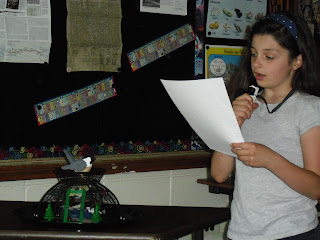
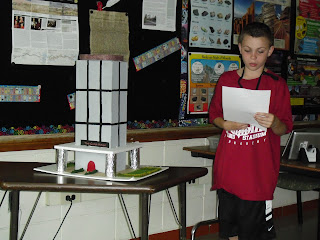


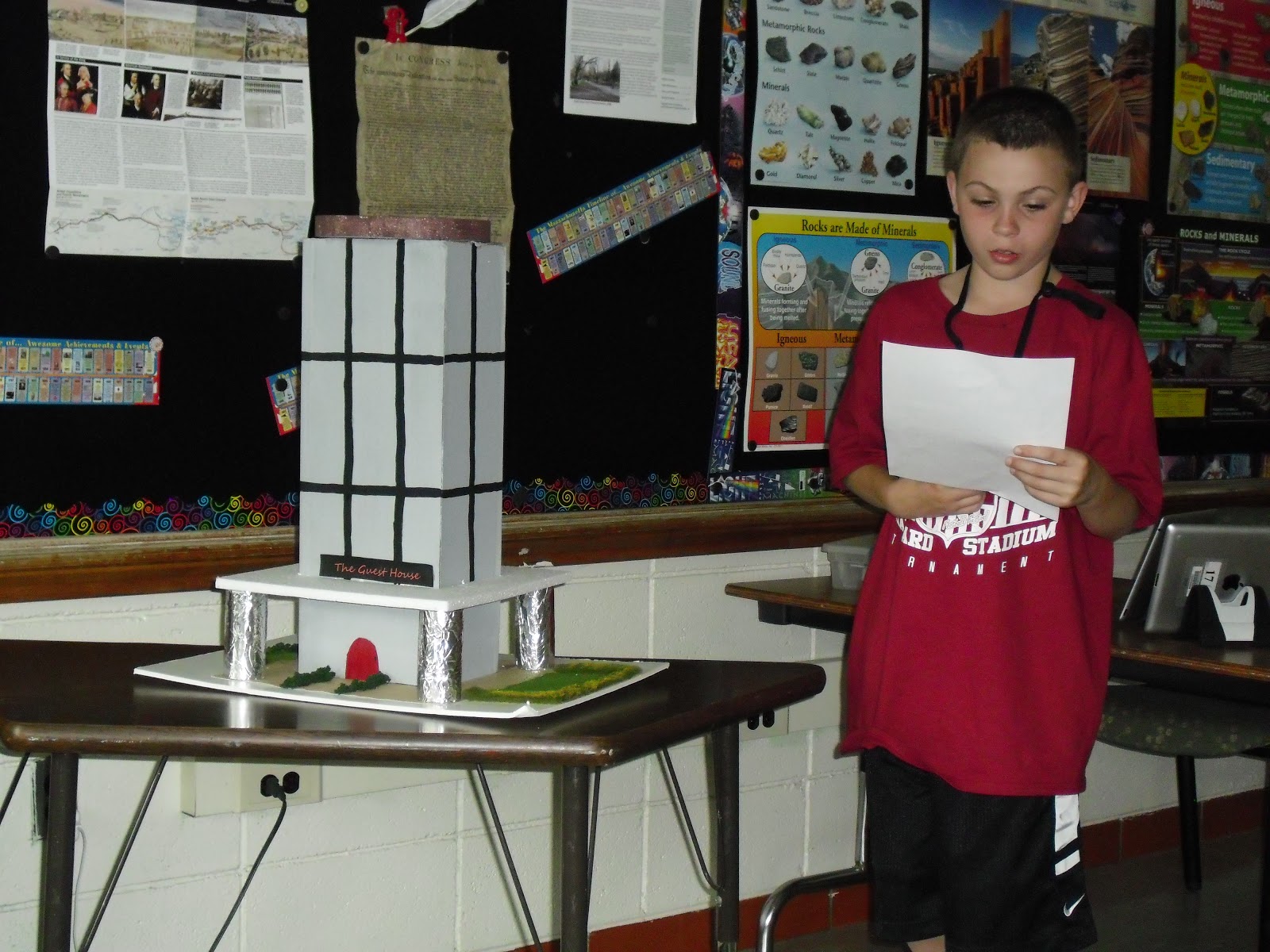
So far the building Boston projects have been very creative! We have seen a bird sanctuary, a barnyard, a hotel for sports players, a chocolate chip cookie factory, a gluten-free bakery, and a nature place. Every year I am amazed at how great these projects come out. I especially love the names that each building has. Great job third graders!!



Tuesday, June 11, 2013
Day 140 - Laura Delia, Pine Glen Elementary Library
Where Can I Find Books to Read This Summer?:


Find links to all of the recommendations listed below (and more!) on the “Summer Reading” Symbaloo page.
Glen Picnic and Book Fair, June 12
All books will be Buy One, Get One Free. Great chance to stock up on summer reads!
Got Books? Book Cart
Pine Glen now has a Free Lending Library Book Cart in the lobby filled with gently used books from the Used Book Superstore of Burlington. They are free so take one or donate one (or two or three)! Only available while school is scheduled.Burlington Public Library
Not only do they have a great Summer Reading Program but you can check out books, magazines, graphic novels, and ebooks all year long! It’s free!iReady
Pine Glen students can continue to use iReady at home over the summer. Just use the same student login you use at school. Free to use.Tumblebooks
Pine Glen’s database of digital picture books available to students and their families all summer long. Free to use.WeGiveBooks.org
Sign up for a free account and you and your family will have access to a great collection of web-based, digital books you can read online. Plus! for every book you read, one book is donated to a world literacy cause. It’s free!Used Book Superstore
Lots of great deals all year long!Wednesday, June 5, 2013




Thursday, May 30, 2013
Day 132 - Jane Lynch, Pine Glen Elementary Grade 3
Twisters touch down in Room 205:


 Guided reading lessons this week were all about tornadoes .In the wake of the recent tornadoes in the Mid-west we worked hard learning about how these storms can start and how to stay safe. We used the tornado bottle models to observe the formation of the funnel type column that forms during a tornado. This week we are writing our own weather reports and drawing weather patterns across the United States.


Subscribe to:
Posts (Atom)